

Help Center / Saving, Sharing & Accounts
Share a design link
A design link opens a copy of your design in Cutting Board Designer. Anyone with the link can open it, and no account is needed.
Steps
Open the design you want to share.
Choose Share Design Link in the Export & Save panel. You can also choose Share at the top of the app. On smaller screens and phones, Share is under More actions.
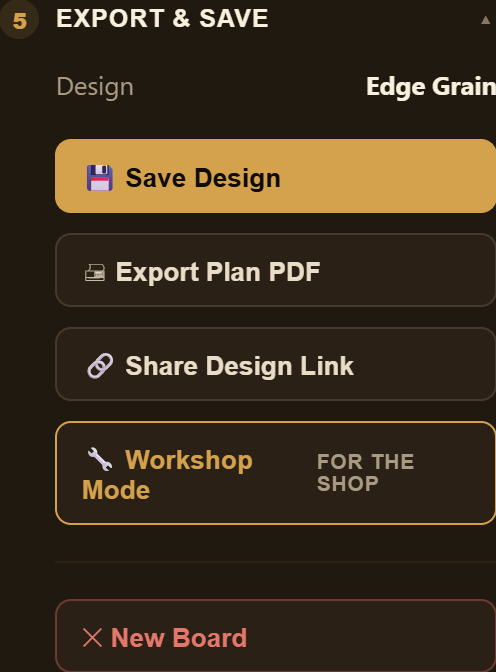
3. The link is copied, and the button briefly confirms it.
4. Paste the link into an email, a message, or the custom order form.
What the link includes
The link carries the design itself: the board size, style, layout, woods, border, and features. Nothing is uploaded to an account.
It's a snapshot. If you change the design later, copy a new link.
Your custom wood prices and shop settings aren't included, so someone else may see a different cost estimate.
Opening a design link
If the browser already has a design open in Cutting Board Designer, the app asks Open shared design? before it replaces anything. Choose Open shared design to replace the design that's currently open, or Cancel to keep it. If you want to keep your own design, save it to My Projects first. In a browser that hasn't used Cutting Board Designer before, the link opens directly.
To open your plan on your phone at the bench, use Copy link for your phone in Workshop Mode. See Use Workshop Mode.
Related articles
Still stuck? Contact me.