Help Center / Saving, Sharing & Accounts
Create an account and save designs to it
An account is free and optional. It lets you save designs to your account so you can open them wherever you sign in, and keep your My Lumber inventory there too.
Create an account
Choose Sign In at the top of the app.
Choose New here? Create an account.
Enter your email and a password, then choose Create account.
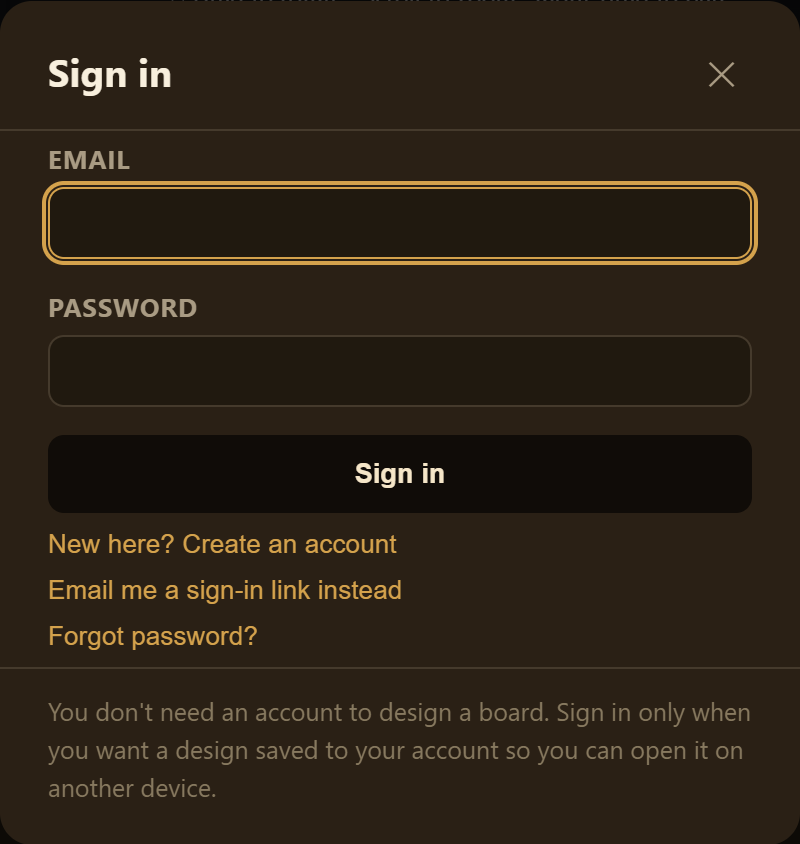
4. Check your email to confirm your account, then sign in.
Sign in
Choose Sign In.
Enter your email and password, then choose Sign in.
You can also choose Email me a sign-in link instead, or choose Forgot password? to reset your password.
The first time you sign in
If you have designs saved on this device, the app asks whether to save them to your account. Select the designs you want, then choose the Save to my account button, or choose Skip. You can do this later in My Projects with Save device designs to my account.
Save a design to your account
Choose Save at the top of the app, or Save Design in the Export & Save panel.
Enter a Name, keep Also save to my account checked, and choose Save.
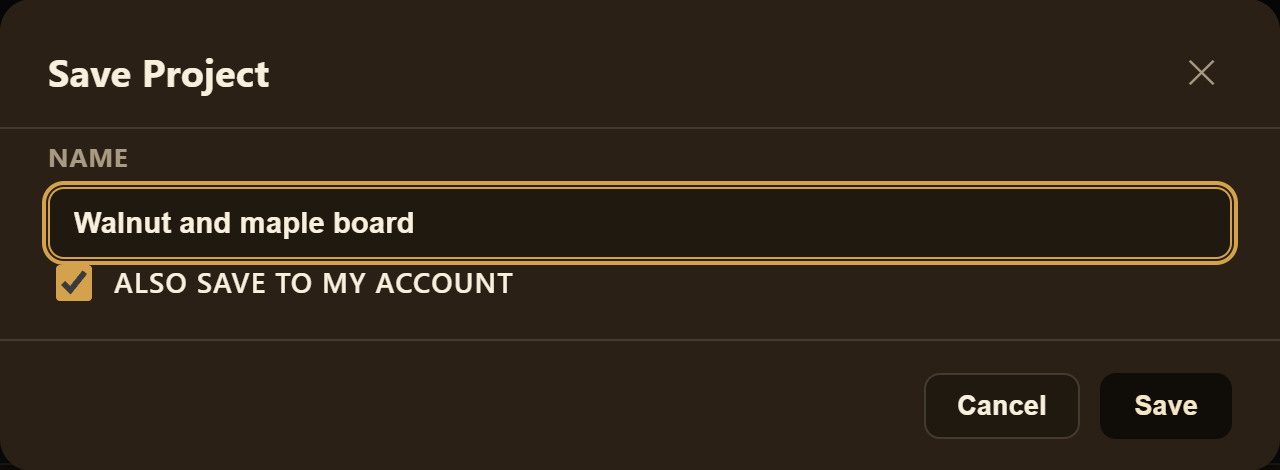
3. The Export & Save panel shows Saved to your account.
Good to know
Saving to your account happens when you choose Save. It isn't a live background sync. If you change the design, save again. Until you do, the panel shows Unsaved changes.
Saving to your account needs an internet connection.
Each save also keeps a copy in My Projects on this device. If My Projects on this device is full, Save is blocked until you delete or export a project there. See Save and reopen designs on this device.
Photos you add to lumber items stay on the device where you added them.
Open your designs on another device
Sign in with the same account, choose My Projects, and open the design under In your account.
Account settings and signing out
Choose the gear icon (Account settings) next to your account. It shows the email you're signed in with, Sign Out, and Delete Account. On wider screens, Sign Out is also next to the gear icon.
Related articles
Still stuck? Contact me.